Making presentations with AI now takes minutes: Gamma, Copilot in PowerPoint, in Slides and Canva turn a few sentences into a draft slide deck. Here is what each tool does according to its own documentation, what happens when that deck is sent as a link and nobody is there to walk through it, and when it pays to move to a presentation that talks or to a chatbot for your business.
How AI presentations get made
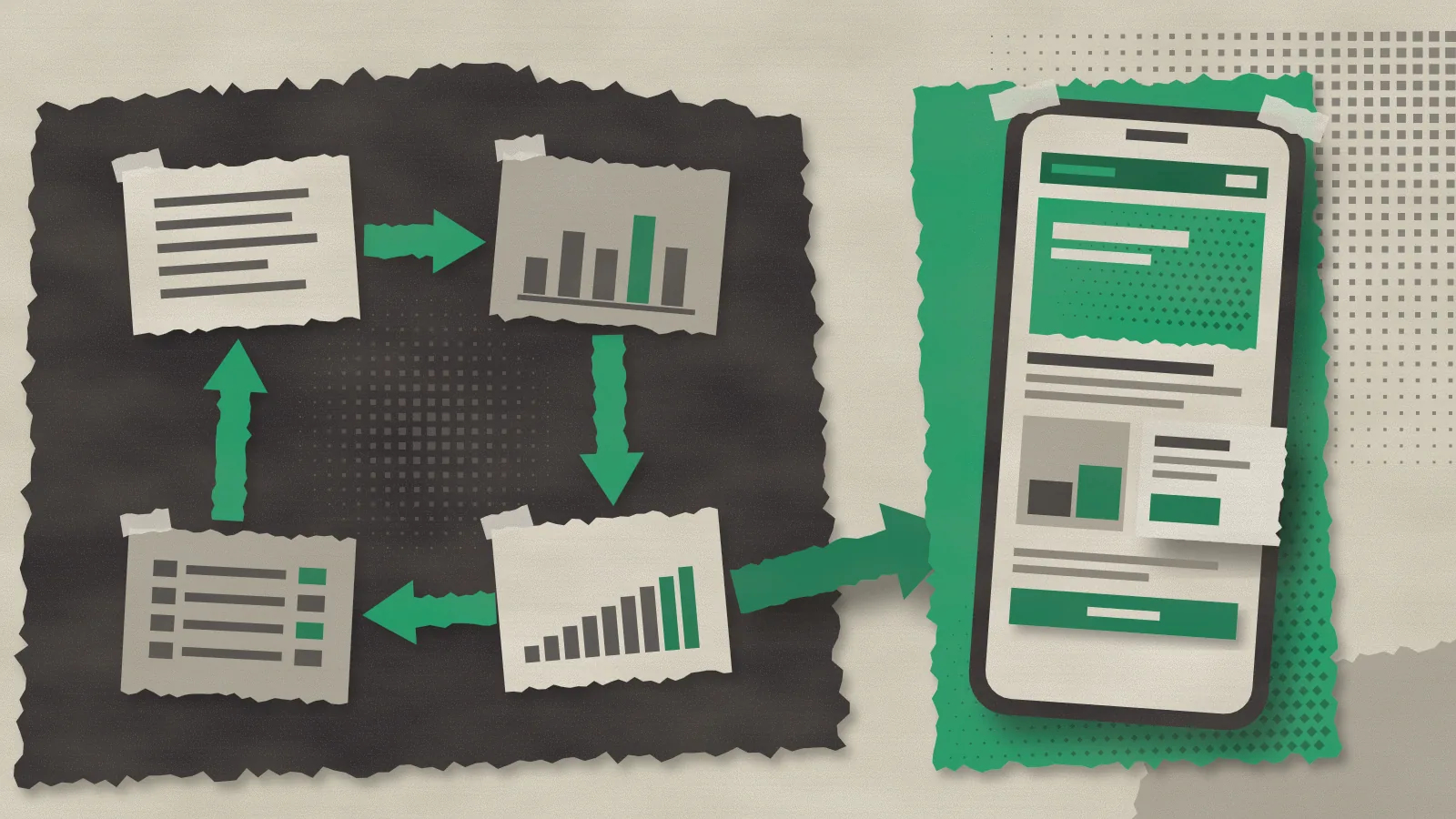
The flow is very similar in all of them. You describe what you need, the tool asks a question or two, shows you an outline and, once you approve it, generates the slides. You can then edit everything by hand.
Copilot in PowerPoint works this way in Agent Mode: you type the request, it may ask about the audience or the image style, it drafts an outline you refine in the chat and then it creates the slides. According to Microsoft’s FAQ, Copilot Pro (the home licence) can start from a Word document, and Microsoft Copilot at work can also start from a PDF.
Gemini in Google Slides builds editable presentations from a prompt, can use Drive files as references and can match the style of another deck. says it needs an eligible Workspace or AI plan and that, for now, the feature is available on desktop and in English only.
In Canva you open Canva AI, choose Presentation, describe the topic, edit the outline and click Generate presentation. Canva treats it as a premium AI tool that counts toward your monthly AI usage, and access depends on your plan.
Gamma app: what it does and what it’s for
Gamma starts with a conversation. According to its help centre, the agent asks about your goal, your audience and what matters most, shows you a plan covering the story, the style and the look, and builds nothing until you give the go-ahead. Then it researches, writes, designs and generates images. If something is off, you tell it in the chat or change it yourself.
On its website, Gamma says it exports to PowerPoint, PDF, PNG or Slides, that results can be published as a website or shared as a link, and that it tracks engagement metrics. It has a free tier with a starter pack of AI credits and accepts prompts in more than 60 languages, Spanish included.
If you are going to present the deck yourself, in a meeting or in front of a screen, these tools take a lot of the work off your hands. At LetBrand we see them as the fastest way to get a first draft.
What happens when the deck travels on its own
Slides are designed for someone to talk through them. When you send them by email or WhatsApp, the client opens them without you, often on a phone, and their questions wait for the next call. On a vertical screen, a horizontal slide also means zooming in or turning the phone sideways.
Copilot can also answer questions about the content of a presentation from its chat, according to Microsoft’s FAQ, but it does so inside PowerPoint and for whoever holds the licence. Someone who receives your file without that licence has nobody to ask.
There is another problem. Microsoft warns that if two people ask Copilot for a slide using the same words, they are likely to end up with identical or nearly identical content. On X the fatigue is starting to show. On 1 October one user put it like this, in Spanish (“can you stop making all your presentations with AI? they all look the same”):
What a presentation that talks is
At LetBrand, a presentation that talks is a presentation microsite with an agent. We start from your PowerPoint or presentation and turn it into an HTML page with an agent that knows that content. When someone asks a question, the agent opens the section that explains it and highlights the passage it relies on. If the information isn’t there, it says so.
We deliver it with its own password-protected link, and it works well on a phone. Anyone with the link can ask questions without a or account. If we agree on it, it can also collect opens, clicks, time per section and the questions people asked the agent, always within the microsite.
Why LetBrand is betting on the vertical format
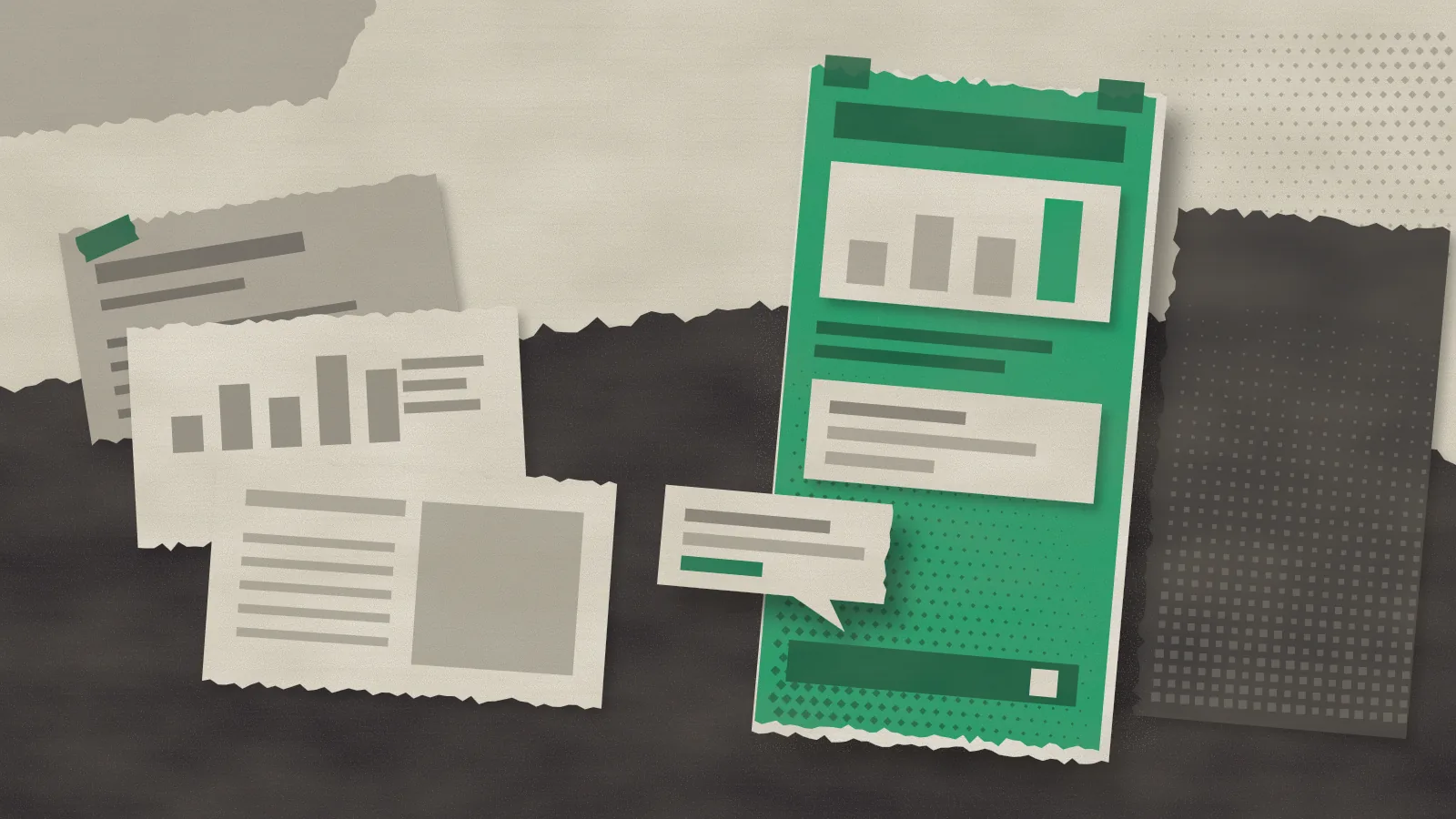
This is our opinion, and we have made it LetBrand’s flagship format: a presentation sent to a client works better as a vertical page than as slides. You read it with your thumb, like any website, and it can hold charts, buttons or a form without anyone installing anything.
That is why we design for mobile first and adapt to desktop afterwards. The agent fits here for a practical reason: the question comes up while the client is reading on the sofa or on the train, and that is the moment to answer it.
When to move to a chatbot for your business
A presentation that talks answers questions about one specific piece of material. Our rule of thumb for moving to a custom chatbot is this:
- The questions no longer fit in one document: current prices, stock or the status of an order.
- The assistant needs to look up your catalogue or your data, or take approved actions, such as drafting a reply or handing the case to a person.
- You want to serve any visitor to your website or an event, not only the people who received a link.
- You need voice. For that we work with ElevenLabs or GPT-Live-1, depending on the project.
If you want to see how an assistant like this behaves, there is a guided demo with sample answers.
What to check before sending an AI-made presentation
Microsoft is clear about it in its FAQ: Copilot can’t understand meaning or evaluate accuracy, so you need to read, edit and verify what it produces. The same goes for any tool. Check every figure against its source and open the deck on a phone before you send it.
Look at the images too. According to Microsoft’s page on creating presentations, AI-generated images made in Copilot carry content credentials based on the C2PA standard, and slides that use them say so in the speaker notes. If you are showing real products or real people, it helps to know which picture is real and which isn’t.
How LetBrand can help
If you already have the deck and want it to answer questions when you’re not there, our entry offer is the Presentation that talks: we turn your deck into a presentation microsite with an agent, designed for mobile and with its own link. If what you need is an assistant connected to your catalogue, documents or tools, take a look at our custom chatbots or try the guided demo. Tell us which presentation you want to transform and we’ll send you a quote.